Fixer
EBS Snapshot Archiving: Effective Strategies to Reduce AWS Costs
EBS Snapshot Archiving reduces AWS snapshot storage costs by up to 75%. Learn when to archive, how it differs from standard snapshots, and implementation steps.

Table of Contents
- Introducing EBS Snapshots Archive
- How to Decide Whether to Archive a Snapshot
- Possible Challenges when Archiving EBS Snapshots
- How to Archive Your EBS Snapshots
Optimize AWS EBS costs with strategic snapshot archiving
“Hic sunt dracones”
– Latin, “Here be dragons”
Fun fact: no ancient maps actually say “here be dragons” (apparently just one old globe does). But that doesn’t change the allure of the phrase: a warning of unknown dangers lurking in uncharted territory.
Which brings us to AWS EBS Snapshots Archive.
Okay, AWS isn’t quite the same as the edges of the earth. But it, too, has unexplored corners and potential pitfalls. EBS snapshots, for instance, make it easy to restore EBS volumes, and the EBS Snapshots Archive storage tier theoretically makes it easy to lower your costs on those snapshots. In practice, however, leveraging the Archive to do so is remarkably complex – dare we say, like navigating new waters.
The good news: with a bit of number wrangling (or an automated AWS cost optimization solution that does it for you), you can significantly reduce your EBS costs. Let’s explore how to identify which snapshots make sense for archiving, and how we can use that process to achieve greater AWS cost savings.

“A Dragon in the Digital Archives”, art generated by the Midjourney Generative Art AI
EBS Snapshots Archive: A cost-effective – and complex – way to optimize EBS
First, the basics.
Amazon’s Elastic Block Storage (EBS) is a dynamic block storage technology that allows OS-native file systems to be instantly provisioned and attached to EC2 instances, Lambda functions, and more. A file system for EBS is called a volume, and Amazon includes a provision for point-in-time copies of volumes called EBS volume snapshots.
Snapshots are incremental, meaning that a snapshot at a particular time stores the added or changed data since the previous snapshot. When necessary, EBS volumes can be restored from snapshots. This process takes several minutes for small volumes, up to several hours for large volumes of multiple TiB to be restored and fully performant.
At re:Invent 2021, Amazon added the EBS Snapshots Archive, a low-cost storage tier designed to reduce the cost around snapshots. In addition to frequent, incremental snapshots, EBS Snapshots Archive enabled full point-in-time snapshots to be taken and stored at “up to 75% lower cost.”
The potential savings for using the EBS Snapshots Archive tier are clear, but achieving them can be tricky. It requires navigating complexities like the minimum 90 day retention period and the usage of the EBS APIs to determine the amount of unique (in AWS parlance, “unreferenced”) data within a particular snapshot. This calculation helps determine if archiving a particular snapshot will indeed lead to cost savings, so it’s especially important – not all of them will.
How can you reliably determine when a snapshot needs to be archived so you can take advantage of these potential savings? Glad you asked.
Getting started: How incremental snapshots work
Here we go. Like we said – dragons. This fix isn’t for the faint of heart. (Fortunately, CloudFix can do it for you automatically and easily. But more on that later.)
EBS Snapshot Storage pricing is deceptively simple:
EBS Volume type | ||
| Standard | Archive | |
| Storage | $0.05/GB-month | $0.0125/GB-month |
| Restore | Free | $0.03/GB retrieved |
Feb 2023 in us-east-1
You can see the basic trade-off between the Standard and Archive volume types: cheaper per/GB rates for storage, but costs $0.03/GB to restore. Restoration from Snapshots Archive also takes longer, typically 24-72 hours.
At first glance, it seems like the “break even” rate is approximately one restoration per month. However, due to the incremental nature of how snapshots work, it’s actually much more nuanced. Buckle up – this gets hairy.
To quote Amazon’s Snapshots Archive FAQ:
_When you archive an incremental snapshot, the process of converting it to a full snapshot may or may not reduce the storage associated with the standard tier. The cost savings depend on the size of the data in the snapshot that is unique to the snapshot and not referenced by a subsequent snapshot in the lineage, aka “the unique size” of the snapshot. The unique size of a snapshot depends on the change rate in your data. Typically, monthly, quarterly, or yearly incremental snapshots have large enough, unique sizes to enable cost savings.
_
That’s a lot to unpack. To understand what this means and its implications, let’s explore EBS’s data model.
The Archiving Guidelines in the EBS documentation can be a bit obtuse and difficult to parse (to say the least – talk about Latin.) The key sentence from the documentation is:
If you archive a snapshot that contains data that is referenced by a later snapshot in the lineage, the data storage and storage costs associated with the referenced data are allocated to the later snapshot in the lineage.
Here’s the don’t-miss takeaway: if there is data that needs to exist in the Standard storage, then archiving a snapshot which references that data only increases costs, as the data is now stored in both Standard and Archive.
Let’s think through an example, which is a simplified version of the example in the Archiving Guidelines document.
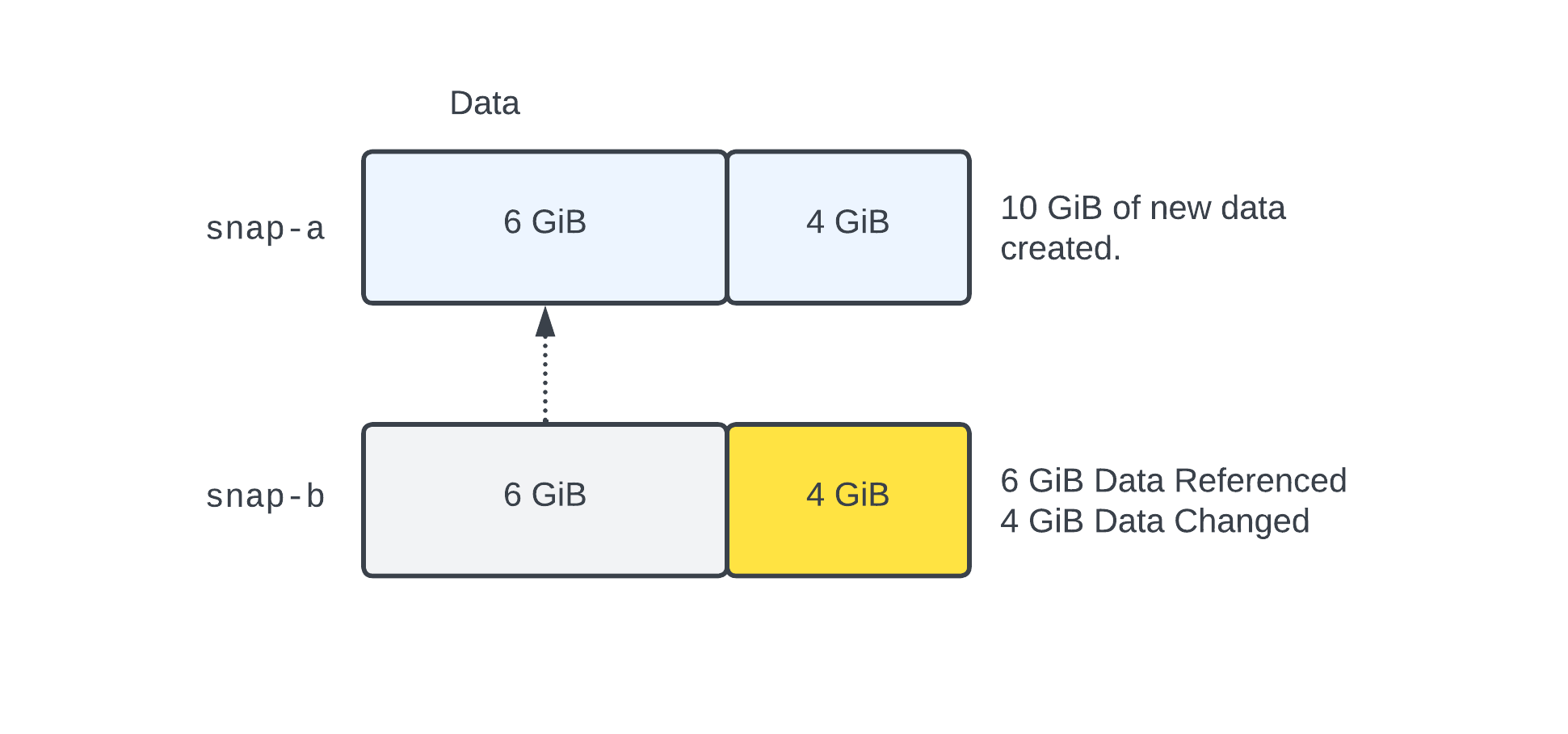
When snap-a is created, it is from a new EBS volume with 10 GiB of new data. This data is divided into a 6 GiB chunk, and a 4 GiB chunk. At the time snap-a is created, it is storing the full 10 GiB of data. After snap-a is created, then the 4 GiB of data changes. When snap-b is created, rather than store another 10 GiB of data, the incremental nature of EBS Snapshots looks at the difference between the blocks, and only stores the new 4 GiB. The 6 GiB which was unchanged is then “referenced” back to snap-a. This is represented by the dashed line.
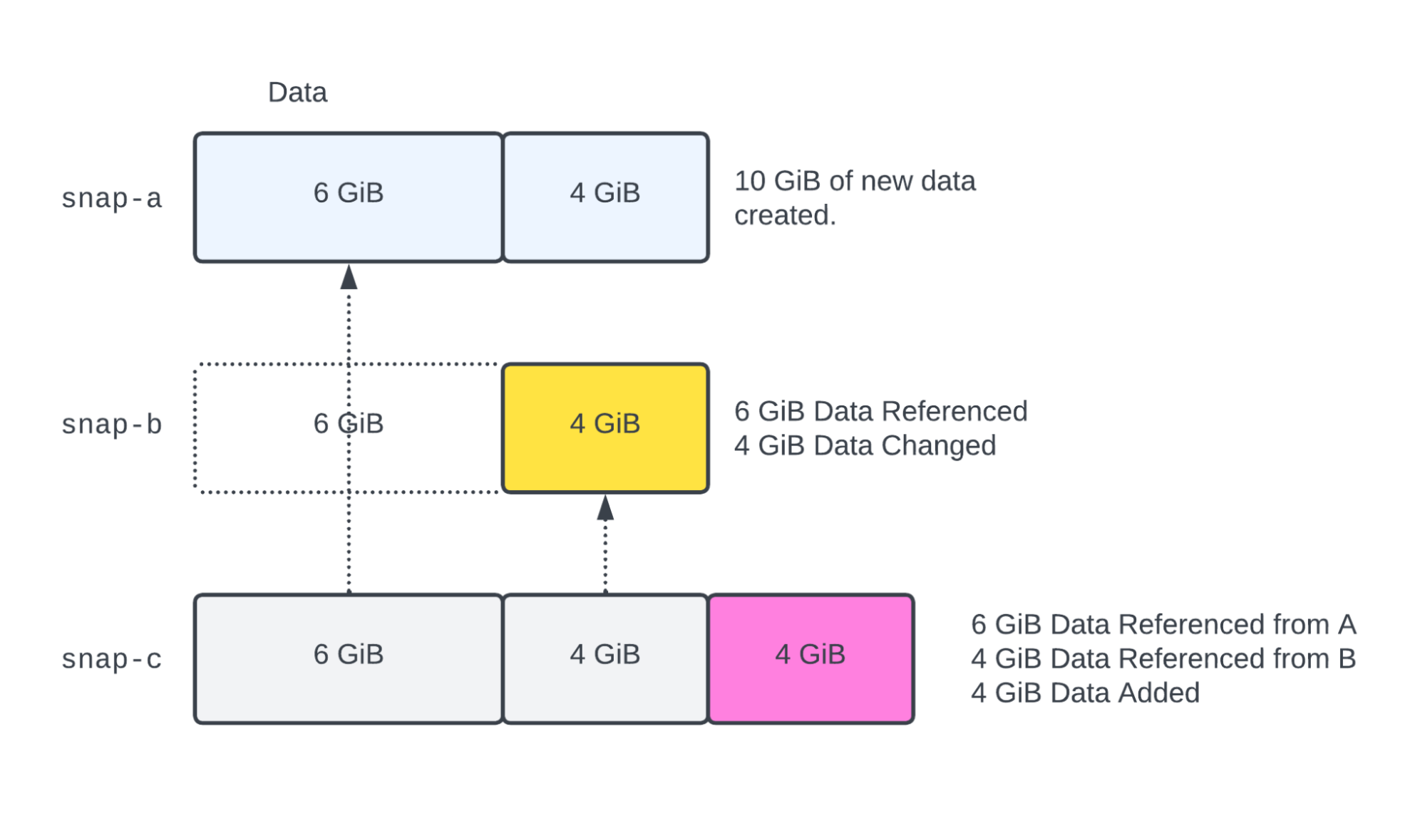
After snap-b is taken, 4 additional GiB of data is added. The original 6 GiB chunk is referenced to snap-a, and the changed 4 GiB chunk is referenced to snap-b. If snap-b is archived, it will be converted into a 10 GiB snapshot (since archive snapshots are full snapshots), and moved to the Snapshot Archive.
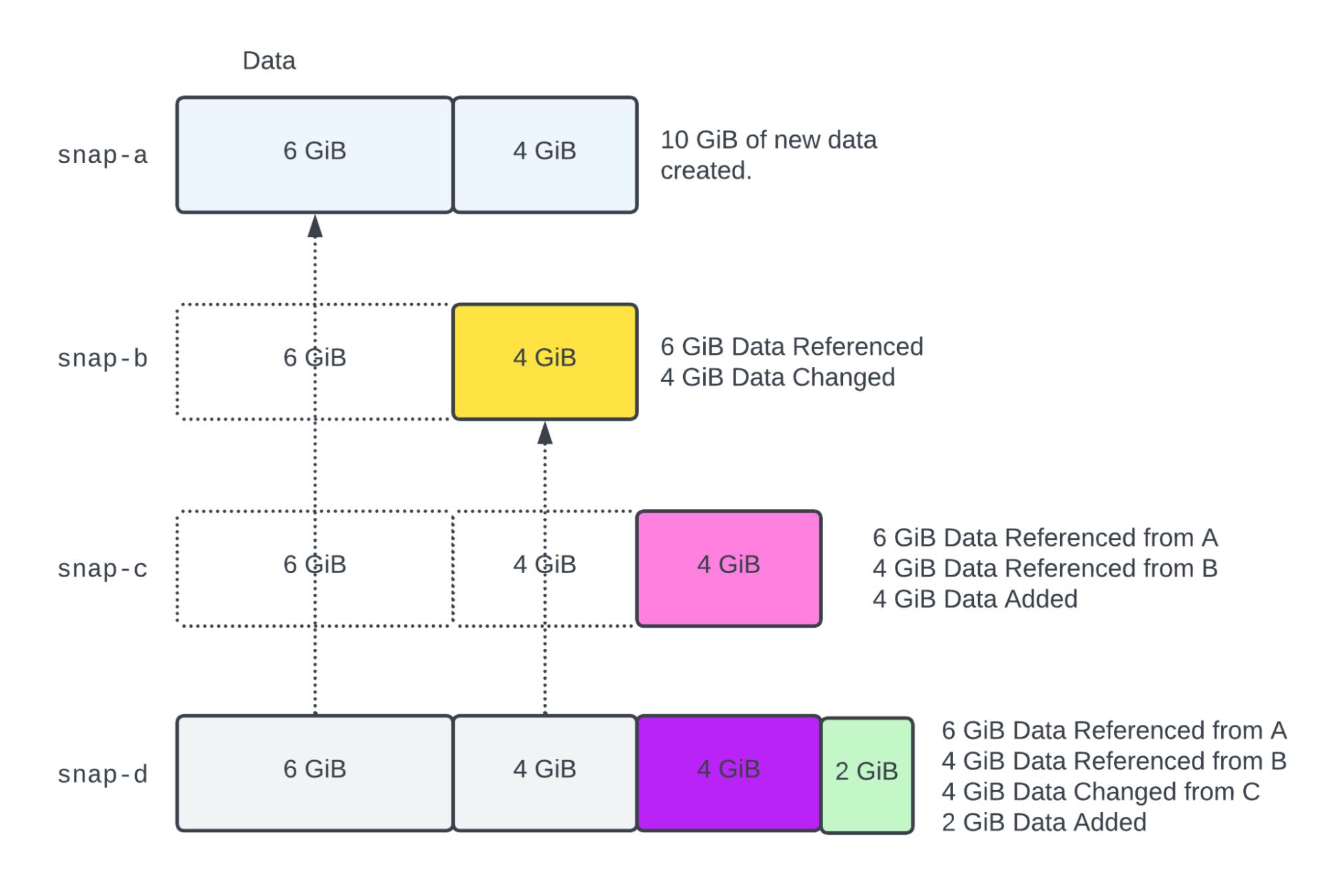
In the final step, the 4 GiB of data from snap-c is changed, and 2 additional GiB of data are added.
Standard vs. Archive storage tiers: How to decide whether to archive a snapshot
So, with that explanation as context, let’s look at which snapshots would make sense to archive.
Right out of the gate, AWS recommends that you do not archive either the first snapshot in a lineage or the last snapshot in a lineage unless you are sure that the volume itself is no longer needed. We can scratch those off the list.
For snapshots not on the boundary of the lineage, we need to determine the amount of unreferenced data in each snapshot. Whether or not to archive a particular snapshot hinges on this information.
Unfortunately, AWS doesn’t expose this number directly (AWS really could make this process easier. Thankfully, we did.) Working it out means comparing the contents of each snapshot against its neighbors in the lineage, block by block.
This is not a simple task. There are many blocks in a volume, so it takes real engineering effort. It’s also not free: AWS charges for the EBS direct APIs that expose snapshot contents (more on that in the “pitfalls” section below).
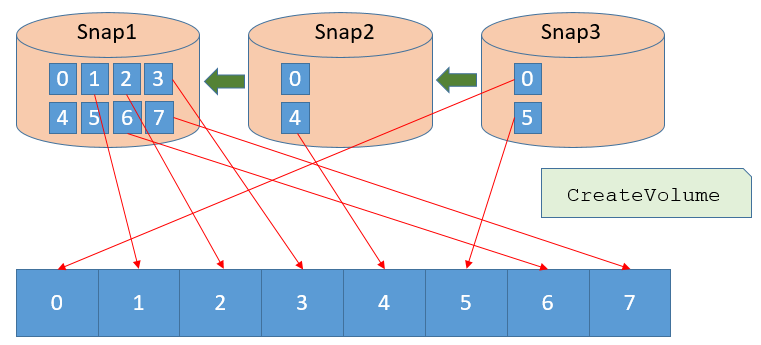
A set of incremental snapshots, highlighting that only blocks which are modified or added are stored in the new snapshot. From EBS Direct APIs blog post, used with permission.
The 8 steps formula to determine when to archive a particular snapshot
AWS does, however, document an 8-step procedure for calculating the cost savings to determine whether it makes sense to archive a particular snapshot (who doesn’t love a good old-fashioned 8-step procedure!). In short: you work out which snapshots sit in the same lineage, figure out how much of the candidate snapshot’s data is unique to it (“unreferenced”), and then compare two numbers:
- The cost of keeping those unreferenced blocks in the Standard tier for the 90-day minimum.
- The cost of storing the full snapshot in the Archive tier for the same period.
Archiving the unreferenced blocks is what leads to cost savings, as those blocks will no longer exist in the Standard tier once the archiving has occurred. Remember, the Archive tier is approximately 25% of the cost, but stores the full snapshot. The Standard tier stores only the incremental blocks. So, there has to be a significant proportion of unreferenced blocks in the candidate snapshot in order to “break even.” As that proportion grows past the ratio of archive cost to storage cost, archiving the candidate makes more and more financial sense.
Simple, right?
Let’s attach some numbers to step 8 of this process, the comparison, by returning to our example above. Once we know how much unreferenced data each snapshot has, how would we decide whether to archive snaps a, b, c, and d?
snapshot | Standard | Archive |
| Cost: 10 GiB * $0.05 = $0.50 | Cost: 10 GiB * $0.0125 = $0.125 |
Analysis: AWS suggests that “If you are archiving snapshots to reduce your storage costs in the standard tier, you should not archive the first snapshot in a set of incremental snapshots. These snapshots are referenced by subsequent snapshots in the snapshot lineage. In most cases, archiving these snapshots will not reduce storage costs.” Recommendation: Do not archive | ||
| Cost: 4 GiB * $0.05 = $0.20 | Cost: 6 GiB * $0.0125 = $0.075 4 GiB * $0.05 = $0.2 Total: $0.275 |
Analysis: Archiving Recommendation: Do not archive | ||
| Cost: 4 GiB * $0.05 = $0.20 | Cost: 14 GiB * $0.0125 = $0.175 |
Analysis: Since 4 GiB is greater than 25% of the entire size of Recommendation: Archive | ||
| Cost: 6 GiB * $0.05 = $0.30 | Cost: 16 GiB * 0.0125 = $0.20 |
Analysis: AWS recommends not to archive the last snapshot in a set of incremental snapshots because “You will need this snapshot in the standard tier if you want to create volumes from it in the case of a volume corruption or loss.” Recommendation: If this is the final snapshot in this series, and the volume will not be used again under standard operations, then it can be archived. Otherwise, do not archive. | ||
By now, you get where we’re going with this: it’s incredibly cumbersome to decide if an incremental snapshot is a good candidate for archival. While it can be done manually, no team has the time and resources to run that process for every snapshot that they’re considering archiving. In the real world, you need to automate the process of determining which snapshots to move in order to reduce costs with snapshot archiving. Full stop.
3 common pitfalls with EBS snapshot archiving
While you catch your breath from that explanation, a few things to watch out for:
- If an analysis of a lineage of snapshots shows that there are very few unreferenced blocks in any particular snapshot, this is a sign that you are snapshotting too often.
- As we mentioned, the EBS direct APIs needed to perform this analysis are billed per request (see EBS pricing). Per request it is fractions of a cent, but across large lineages with many blocks it adds up.
- If this process is not implemented correctly, it’s easy to overspend. This would happen when snapshots are archived which do not have many unreferenced blocks. In that scenario, the majority of the contents of archived snapshot are redundantly stored in the Standard tier as well.
How to archive EBS snapshots in the AWS Console and CLI
Once you have identified the snapshot to archive, the actual process of archiving a snapshot is straightforward: you change the snapshot’s storage tier to Archive, either from the AWS CLI or the console. AWS then reports when tiering started, and you can check on the status of the operation until it completes.
From the AWS Console, to archive a snapshot:
- Navigate to the EC2 Console
- Click Snapshots from the navigation pane
- Select a snapshot to archive, click on the Actions menu, and choose Archive snapshot.
Simplify EBS snapshot archiving with CloudFix
Let’s be honest here: Manually determining whether to archive each and every snapshot isn’t just time-intensive, it’s unrealistic. This dragon is just too big.
Fortunately, CloudFix can do the entire thing for you with the Archive Old EBS Volume Snapshots fixer.
A quick, shameless pat on the back: we’re proud of this fixer. Building it was no easy task. The CloudFix team worked hard to develop, automate, and test our selection criteria so that CloudFix users can realize the potential savings without risking additional expense.
Here’s how it works. CloudFix’s finder reviews your snapshots read-only and identifies older snapshots where archiving actually saves money, skipping snapshots that are unsafe to archive. How old a snapshot must be before it is considered is configurable. Each candidate appears in your Recommendations for you to approve. Once you approve, the fixer runs as an AWS Systems Manager Automation runbook in your own account and moves the snapshot to the Archive tier, and every execution is logged.
With CloudFix, you can skip all those complicated calculations and comparisons. Just approve the change and start saving, easily and automatically, on EBS.
One last heads up: If you have not used the Snapshot Archive, make sure you have a procedure in place for restoring the snapshot. It’s very straightforward, but you should still rehearse the procedure in a non-production situation. Run your test, then run CloudFix. That’s all it takes to make archiving EBS snapshots easy and cost effective. Consider that dragon slayed.
Related Articles
- AWS Cost Optimization: The Complete Guide to Lowering Your Cloud Bill (2026)
- AWS Cost Optimization Tools: The Complete Comparison Guide (2026)
- DynamoDB Standard-IA: Save 60% on Storage Costs (2026 Guide)
- GP3 vs IO2: Up to 87% Cheaper, Real AWS Pricing Benchmarks (2026)
- GP2 vs GP3 AWS: 20% Cheaper, Faster IOPS, Full Cost Comparison